The visual + YAML prototyping workspace
Vinyasa
From the first screen to a clearer product conversation.
Give your next interface a shape.
Build visually, refine with YAML, and review every AI change before it becomes part of your prototype.
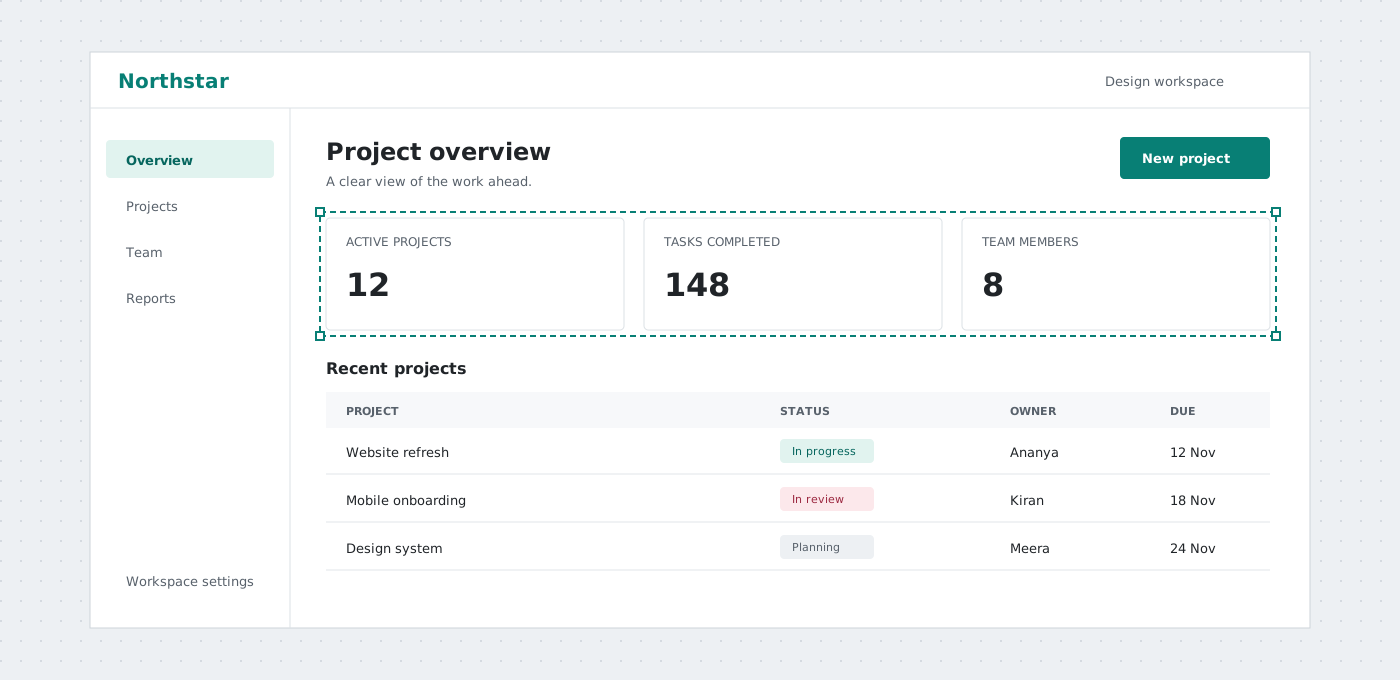
A deliberate workflow
Less guessing.
More working things out.
For the moment when an idea needs more structure than a sketch, but not a full application.
Shape the idea
Arrange screens, nest layouts and connect a flow on the visual canvas.
Make it precise
Inspect the YAML. Change supported properties. Validate before applying.
Review the next move
Ask AI for a focused change, inspect the diff, then decide what to apply.
A picture starts the conversation
Keep the idea.
Keep what makes it work.
A beautiful mockup communicates appearance. An editable Vinyasa document also preserves the controls, relationships and screen destinations behind that appearance. The next revision has somewhere to begin.
RELAY / real CRM example
A field is still a field.
A screen is still a screen.
The contact list, stage selector and notes retain their types, IDs and layout relationships. You can revise a specific element instead of recreating the whole picture.
The design has an addressable structure.
Open the complete CRM example- textcrm-brand
- textcrm-title
- inputcrm-search
- dropdowncrm-filter
- framecrm-list4 children
- textcrm-note
Visual on the surface. Structured underneath.
A design you can
actually read.
Every screen is a document: typed elements, stable IDs, pages and layout rules. Move a control on the canvas or make a precise change in YAML. Validate the draft, then apply it deliberately.
- Nested row and column frames
- Reviewable text changes
- Editable .rvv backups
elements:
  - type: frame
    id: sign-in-form
    left: 74
    top: 74
    width: 342
    height: 200
    layout: column
    padding: 16
    gap: 16
    children:
      - type: button
        id: continue-button
        text: Continue
AI, with a review step
Your assistant.
Your final say.
Ask for a focused change. Copilot inspects relevant elements and proposes validated edits. Compare the diff, keep what works, and discard what does not. Your provider and model remain your choice.
AI setup and data flowRequest / inspect / propose / review
“Move the Save button 16 pixels down. Leave everything else alone.”
Provider access, quotas and browser support vary. No silent provider fallback. No automatic canvas mutation.
For your coding agent, too
A real contract.
Not a guessing game.
Connect an MCP-compatible client to the hosted Vinyasa server. Discover element schemas, validate YAML, request atomic edits and produce a project file. Tools work on the document you supply, not your open browser.
Connect your MCP client- 01list_elements
- 02get_element_schema
- 03validate_document
- 04edit_document
- 05export_project
Ten starting points. Different product problems.
What will you
work out next?
Inspect a complete document, follow its screen links, then adapt it. Every example includes editable YAML and an in-browser preview, not just a finished picture.
Analytics dashboards
Arrange metrics, product reports and team activity. Discuss information hierarchy before connecting a reporting API.
Mobile app wireframes
Explore a travel discovery and booking journey with separate screens and linked actions.
Desktop application layouts
Plan an explorer, document workspace and preferences screen for a work-focused desktop tool.
Sign-in and account recovery
Review authentication screens, account creation and recovery copy without building an identity service.
E-commerce storefronts
Follow product discovery, product details, cart and checkout. Keep payment processing separate from the prototype.
Kanban and project boards
Organize work into stage columns, inspect a task detail screen and discuss ownership and status.
CRM and contact management
Sketch a searchable customer directory, pipeline stages and a linked contact record using synthetic data.
Appointment scheduling
Compare calendar, time selection and booking-summary layouts. Make availability and time-zone assumptions explicit.
Onboarding and form wizards
Review a mobile profile, preferences and completion flow with progress indicators and back navigation.
Support and service desks
Explore a ticket table, conversation view, reply draft and status controls before implementing delivery or permissions.
Examples are starting points, not industry-certified templates. Search, forms, payments and business records need real application logic. Use synthetic data while reviewing a design.
The building blocks
From a single control
to a connected flow.
A useful wireframe describes more than where boxes sit. Make content, hierarchy, navigation and review decisions visible.
- Forms and input patterns
- Combine labels, inputs, text areas, checkboxes, dropdowns and actions. Explore sign-in, preferences and multi-step forms. Inspect form elements.
- Data and status displays
- Use tables, calendars, badges, alerts and progress indicators to communicate representative data and states. Explore data elements.
- Frames and page organization
- Express rows, columns, spacing and nesting with frames. Name pages and link actions to target screens. Understand layout elements.
- Navigation and screen journeys
- Compare entry points, detail screens, back paths and confirmations. Review the journey before implementing a router or backend. Explore linked screens.
- Visual and text-based editing
- Arrange the canvas, then inspect supported properties and stable identities in YAML. Explicit validation keeps a draft separate from the applied document. Read the YAML workflow.
- Review and portable handoff
- Keep a project backup, compare document revisions and share a visual export. Describe the behavior a developer must still implement. Review document changes.
For the people shaping a product
A shared reference.
Not another vague brief.
Designers and product teams
Explore information hierarchy, alternative screens and task flows. Use a prototype to surface unclear requirements before spending time on a full visual system.
Developers and technical leads
Inspect element identities, layout relationships and proposed diffs. Turn a reviewable prototype into implementation tasks without confusing a mockup with executable application code.
Founders, analysts and educators
Make an idea concrete enough to discuss with collaborators, clients or learners. Use editable examples to explain screen structure and gather feedback on the proposed journey.
Before you start
Practical questions.
Clear answers.
Understand the scope before choosing a workflow. Provider setup, limits and document contracts are covered in the documentation.
Read the full guideWhat is Vinyasa used for?
Vinyasa is a browser-based UI wireframing and prototyping workspace. Use it to plan screens, explore linked flows, review structured changes and prepare an implementation brief. The same document can be inspected visually and as YAML.
Do I need AI or a provider API key to make a wireframe?
No. The visual editor, document workflow and examples can be used without making an AI request. AI features require a supported provider setup; access, browser support, quotas and any provider charges depend on that provider.
Can I turn a text description into a UI prototype?
You can ask the configured AI assistant for a document proposal or edit supported elements in YAML yourself. Inspect validation results and review the proposed diff before applying it. A prompt does not guarantee a correct or complete design.
Does Vinyasa generate a production website or application?
No. The output is an editable prototype, not a deployed frontend, backend or application codebase. Implement responsive behavior, accessibility, data services, authentication and business logic separately.
How do I share a wireframe and keep it editable?
Use an .rvv project for continued editing in Vinyasa. Use document YAML for structured review and PNG or SVG for visual discussion. A static image does not preserve the editable element model.
Can a coding agent work with Vinyasa?
An MCP-compatible client can connect to the hosted server to discover element types, inspect schemas, validate documents, apply atomic document edits and export a project. It works on supplied document data, not a remotely controlled browser canvas.
Does a mobile mockup automatically become a responsive app?
No. Named pages let you explore mobile, tablet or desktop compositions. Those are design decisions to review, not generated responsive CSS or a guarantee that one layout fits every device.
Can a team edit the same canvas together?
Vinyasa is not a real-time multiplayer design service. Share an editable project or review YAML changes, agree who owns the next revision, and use your existing review process for collaboration.
Make the next idea tangible
A prototype worth discussing.
Keep the editable project. Share PNG or SVG. Build the production application separately.